
We fell across the Nikkai A00JQ LCD TV at our local Maplin store – A 7 inch analogue and digital TV with support for multimedia – for £70. Here’s our review of this small telly.
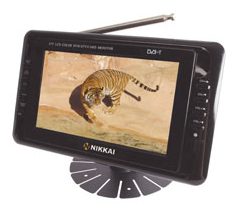 What is the Nikkai LCD TV?
The model number for this little telly, should you need it, is the Nikkai JV-TVC707EA.
This compact little 7″ TV is made under the Nikkai brand for UK firm Maplin has proved to be the perfect little find. Ideal for sitting on a desk in a home office to provide TV while working on the PC.
The Nikkai LCD TV has both an analogue and a digital tuner, so it’s capable of getting the Freeview TV and radio channels if your aerial can get a decent Freeview signal. For those in areas that have not made the digital switch, it’s also capable of getting the standard analogue signals of BBC1, BBC2, ITV, Channel 4 and 5, as well as from a Sky box RF out socket.
It’s also capable of playing back media from a USB stick – handy for watching AVI files, watching a slideshow of photos or listening to music.
Here’s a summary of what this TV, better known as the Nikkai JV-TVC707EA, has to offer:
- Receive Freeview (DVB-T) channels as well as analogue TV
- AV video input allows connection of a camcorder, VCR/DVD, or security camera
- USB and SD/MMC/MS inputs
- Playback MPEG4 (AVI) compressed video (DivX etc.)
- Playback your MP3 music collection
- Digital photo frame mode – view JPG photos, with 12-picture preview and rotate function
- Supplied with indoor and 12V car power supplies
- Integrated stand and removable pan and tilt mount
- Use either supplied telescopic aerial, supplied DVB-T mini aerial or link to a main aerial feed
- PAL tuner suitable for reception throughout Europe
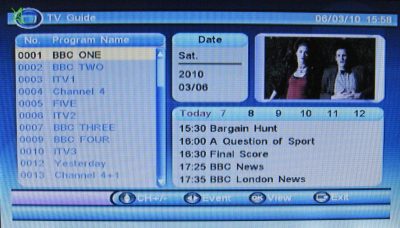
- 7-day Electronic Programme Guide (EPG)
- Fully featured remote control accesses the on-screen menu display
- Internal stereo speakers and output connector for external speakers
Availability:Available from Maplin (Model A00JQ) – check prices online: Nikkai 7″ flatscreen TV |
Let’s take a little look at what this telly can do in a little more detail…
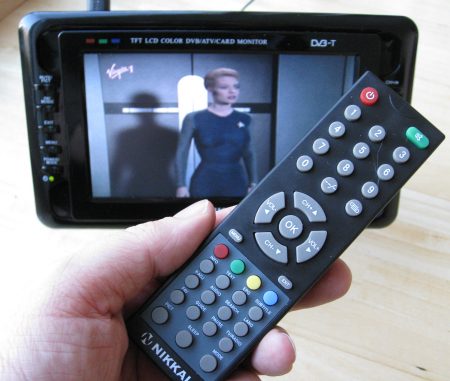
The Nikkai TV comes with a telescopic aerial, which for us was not able to get a great signal, and we stood no chance getting Freeview where we live. The telly is also supplied with a more sturdy desktop base aerial (intended for cars, we assume), which got an acceptable analogue signal. The telescoping aerial can be removed, leaving a standard co-ax aerial socket for connection to a rooftop aerial. We plugged into an aerial socket, and hey presto – all of the analogue and all of the Freeview channels. Auto-setup made scanning for channels a breeze.
We’ve also been using the Nikkai as a digital picture frame with images on a connected USB memory stick, and for playing back our small collection of TV shows in DivX AVI format.
It’s also great with Freeview with a workable 7 day electronic programme guide
Our thoughts
The Nikkai is pretty easy to use. Most of the functions are available from the buttons on either side of the screen, but everything can be driven from the remote.
Negatives? No – not really. The TV is not the most stylish unit in the world, but that’s aesthetics. The only real down size is the audio – the speakers are fairly small, and on the rear of the TV, which means the sound is adequate, but not stunning. Compared with a larger TV, or even a TV on a PC with a decent set of speakers, the audio is a little tinny, and MP3 music playback was a little disappointing. Good news is that there’s an audio out, so you can hook it up to a better set of speakers, or run the sound through headphones.
Otherwise, hard to fault – good clear picture, easy-to-use.
Nikkai LCD TV Specification:
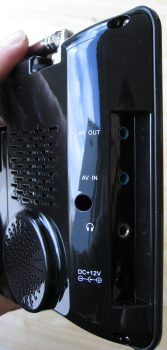
- Input: AV video (3.5mm jack with 3 x RCA adaptor)
- Output: earphone jack
- Power: DC 12-24V, 10W (car and mains power supplies included)
- Dimensions: 230 x 135 x 35 mm
- Weight: 556g
 |
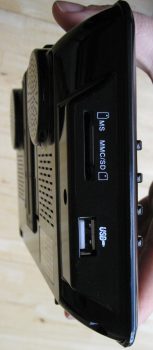 |
For more details of the Nikkai TV, go to Maplin.co.uk
Supplied with?
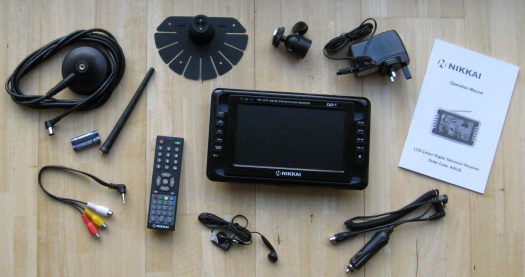
The Nikkai TV from Maplin is supplied with:
- Telescopic aerial and desktop aerial
- Mains transformer
- Desktop stand
- Remote control and batteries
- Stereo headphones
- 12V car adapter
- Instruction manual
- AV connector
- Co-ax aerial adapter
Need help?
Got a question about this little TV from Nikkai and Maplin? Ask away.
Your Questions
Power Supply:
“I’ve bought a Nikkai 8″ tv from ebay and it does not have a power supply with it model no is A13fg can you tell me what type i would need ie power and wattage”
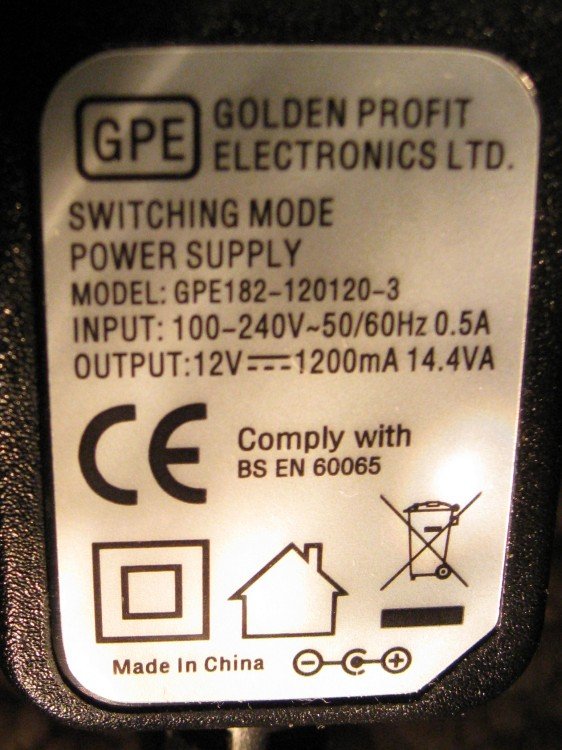
We have the 7″ Nikkai TFT LCD TV (Model JV-TVC707EA), and this model is supplied with the following power supply (see image of power supply label)
- Manufacturer: Golden Profit Electronics Ltd
- Model: GPE182-120120-3
- Input: 100-240V ~ 50/60Hz 0.5A
- Output: 12V 1200mA 14.4VA
- Tip is positive, shield is negative
Manual for Nikkai A00JQ:
We’ve received a few requests for help in finding a manual for the Nikkai 7″ TV. This was available as a PDF file from the Maplin Site – It was shown on the entry for the Nikkai 7″ flatscreen TV at Maplin – Last time we checked, the product was no longer listed, meaning the manual was not longer listed either. If you can’t find the manual, try contacting Maplin Support.
Picture Upside Down
Question: “A problem with Nikkai LCD DVB-T model No JV-TVC707EA. TV has worked well until today when switching on the picture is both upside down and reversed, so it can’t be watched even if we turn the set upside down.”
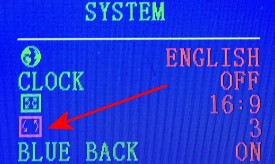
It’s an easy fix. Press the “Mode” button to get to Analogue TV mode (a blue screen with “TV” in the left corner). Now, press ‘Menu’, scroll down to ‘System’ and scroll right. Scroll down to the forth icon (a square with two arrows), and change the value. For us, option “3” shows picture the correct way round.
Picture Off The Screen
Question: “My Nikkai digital TV 9 inch the picture has moved up of the screen and I can’t see the menu in order to fix”
As far as we can tell, there is no way to change the settings other than through the on-screen menu. There is no reset button.
The only thing I can suggest is that you try to navigate to the menu using the instructions in the book – Even though you can’t see the screen, you should still be able to follow the steps in the manual to change the menu options and change the picture position.We have the 7″ version here – If we can help with the menu settings, let us know. Otherwise, give the Maplin helpdesk a call.
How to re-tune this TV:
Question: “I can’t work out how to re-tune my Nikkai 7 inch DVT-3 TV” (Nicola)
To re-tune (scan for Freeview channels), press ‘Menu’, scroll right to “SETUP” and select “Installation”. Then press the “OK” button to scan AUTO SCAN.
Lost the remote
Question: “I bought this TV from Maplin about a year ago but having refurbished my kitchen, I have mislaid the remote. Can you tell me how to get a replacement” (Nicola)
Normally, we’d suggest getting a programmable Universal controller as a replacement, but as the Nikkai is not a common model of TV, we’re not sure a universal controller would have the codes needed. Probably best to contact Maplin’s Customer Support team to see if they can help with a replacement. Their number is 0844 557 6000, and their website is here: www.maplin.co.uk.
Red Button?
Question: “I am a bit disappointed that the red button doesn’t work on BBC. Is this not available – even though the remote has these buttons, or is it a fault.” (Nicola)
Sadly, it’s not a fault. The ‘Red Button’ / Digital Text services are not available on this little telly. We assume it doesn’t have the appropriate MHEG software built-in to support this functionality.
AV Cable Wiring
Question: Is there any chance of getting a pinout diagram of the AV cable? I’ve got a compatible cable but not sure of the pinout. (Alex)
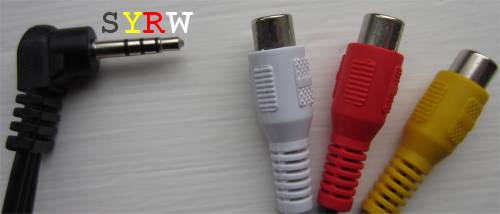
Sure. See the picture below. Looking at the 3.5mm jack, left to right:
- The left pin (S) goes to the screen of each of the three phonos
- The next (Y) goes to the inner core of the yellow video lead
- The next one (R) goes to the inner core of the red audio lead
- The tip of the plug (W) goes to the inner core of the white audio lead
Subtitles
Question: How can I turn the sub-titles Off permanently for watching TV programmes.”
To disable subtitles, go to the “Setup: Installation” menu, and set “Subtitle Language” to “Off”. You can also toggle subtitles using the grey Subtitle button on the remote control, which pops us a Subtitle dialog letting you turn subtitles on or off.
Playing back music
Scott asks: “Ive bought a nikkai 7″ tv and put my music on a sd card and it plays with no sound so im just wondering why not and is there some thing i can download?”
The Nikkai TV supports playback of MP3 audio files. There’s no need to download any additional software. To play music, copy your music MP3 files onto a USB stick or SD card, and do the following: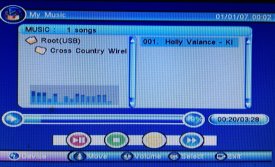
- Insert the USB stick or SD card into the TV
- Press Menu
- Scroll to Multimedia
- Select My Music
- Scroll to the track you want to play
- Use the Red button for pay/pause, and the Green button to stop
If you’re not hearing music, make sure the TV is not on Mute and the volume is turned up

Do NOT buy this! Utter junk. It is not pertable except the fact you can move it. You need to be connected to the mains. It does not work with aeriel supplioed. You need to connect it to your house aerial. The controls are hoopeless. I t does not play most files. And my machine broke after 10 minutes. contimual use. The picture comes and goes but sound remains. Utterly useless.
dissagree, mine is brilliant, all channels that i need are on there, crisp and clean. ace lite telly
It does work, you are probably too far from a window. Move the TV aerial and elevate it.
i need to find a manual for a nikkai lcd hd dv3-t model number is n95ng thanks
Hi
I have recently got this out of the attic, when I switch it on, I get a screen for 1 second then goes off, there is power, just no screen, can you help?
hi plese can you help I have the 10.1 inch nikkai tv and im having trouble playing back movies on my tv I put a new memory stick with fims on in mp4 format, is this the right format for this tv to play my movies on or is it in another format im supposse to use, it opens up when I put the stick in but says there is no file on the stick please could you help many thanks Richard…cheers
Just bought a second hand 10.2″ portable DVB-T/ Analogue TV and Digital Photo Frame but it does not have a remote control or a manual. Have tried to view photos on screen but although it recognises there is an SD card in the slot and the camera it has come from, it says there are no photos, when in fact there are on the card.
Have tried using both the SD card and a card reader. Unable to find the Card mode on the menu. Grateful for,any help
A02JQ 10.2″ screen. I have recently accidentally banged – and sadly damaged the screen resulting in no picture. But everything is in good condition and includes both the remote control and A02JQ manual – still in protective bag! Are you still interested?
Have just purchased a second hand 10.2″ portable Nikkai DVB-T/Analogue TV and Digital Photoframe. No remote control or manual with it. Cannot get my photos from the SD card onto the screen. It says on the screen there are no photos on the card but there are at least 20. Tried both the SD card and a card reader via the USB. Also,cannot find the Card mode on the menu. Any help would be appreciated.
I have replied below – as I have what you needed! Bests, John.
got this tv to use with a security camera when i plug in the camera to the ariel slot i can’t find the channel for the camera
Hi I bought this a while back and have a need to use it whilst away, on switching on everything ok, but I can’t get the menu to come on, I’ve pressed the button several times but it won’t let me access the menu settings at all !
Any Ideas Please
David
Cheap and nasty maplins crap,I have used 3 times over 16 months and it’s packed up.maplins have discontinued it and they say they don’t have any contact details for nikkia (what bull maplins come out with) so it’s a bin job and maplins won’t get a penny ever out of me again.
Respectfully, you must be mis-using it. I was so sad when my screen broke – thru my carelessness! Would have immediately bought another, bit sadly – no longer available. John
yes I agree
this tv is useless
I have had mine just over 18 months
I own a camper van and used the twice
now it comes on with a screen you can’t hardly see in black and white.
I called Maplins through there live chat
they were ignorant behind believe
anything I asked they repeated sorry sir it’s out of gaurentee.
I said what about value for money
he replied sorry sir it’s out of gaurentee.
they will not gat another penny of my money
All EU purchases are covered with a 2 year warranty. Aside from that all products must be fit for purpose for a reasonable amount of time, for electronics goods sold in the UK thats typically 6 years. Do not let the ignorance of customer services tell you about their 12 month warranty and a pile of other excuses, it is not what their company policy is that matters, its is EU law.
I’ve had mine for over a year with excellent usage in my den, it works with the telescopic antenna fine and I’m about 30miles away from the transmitter which when you think of the complexity of a digital television signal is pretty good, it does drop out ever now and then, but WAY better than the grainy picture with analogue TV !
I have a very small home made tv antenna in the loft made out of coat hangers, and coax and has 8 elements strung up there !
That brings in everything at very good strength with no drop outs or pixelisation !
I have Nikkai HD DV3-T and fortunately it works OK. But as I have no manual, can anyone tell me how to edit the list to group favourite channels together?
Thanks for any help.
If+the+camera+has+an+”RF+modulator”+an+internal+circuit+that+turns+the+cameras+video+signal+into+a+radio+signal+that+the+TV+tuner+can+see,+you’ll+never+get+anything.
You+need+to+plug+the+cameras+output+(if+it+is+just+baseband+video)+into+the+socket+marked+’video+input’+easy+peasy
Unfortunately, due to accidental damage the screen no longer works on my 10.2″Nikkai A02JQ Digital tv purchased from Maplins. I still have everything, still in original Nikkai box in good condition – including manual and remote control. Is anybody still interested in parts please?
Do you still have the cigarette lighter power supply as I would buy it off you cheers chris
I would like to purchase the remote control for the 10”tv
Do+you+still+have+the+car+cigarette+power+lead+as+I+would+buy+it+off+you+thanks+chris
I+have+just+bought+a+used+10+2″+Nikkai+tv+screen+goes+blue+when+turned+on+using+my+house+arieal+but+it+wont+tune+in+any+channels+any+ideas+please+?
I+have+a+complete+one+of+these+for+sale+in+original+box+with+all+accessories+make+me+a+sensible+offer,+location++Gateshead
Reference+my+last+comment+it+is+the+10.2″+model
How do I play photos back from a usb stick on my small Nikkai tv
Could you please tell me how to play back photos from a usb stick on my small Nikkai tv
Picture Upside Down solution – many thanks!
For got pin number won’t let me back in to watch just wondered if there’s a bye pass code DV3’T
My Nikkei 7inchs works well in the Analogue mode, but DTV presents only sound no pictures. And displays HDTV not supposed. Please what can I do to fix this error.
Thanks.
Hope you got your problem sorted but I was just wondering whether or not you use the 12v car charger only mine as broken and ime struggling to get a replacement, I am prepared to buy it off you if you’re not using yours as I use my t.v in my truck.thanks Paul.
I was just wondering if you have the cigarette lighter supply and if you would like to sell it to me if you’re not using it only I’ve broke mine and ime struggling to get a replacement, only I use my t.v in my truck.thanks .